
Signing In
Logging in
Section titled “Logging in”Go to the Admin Portal login page. You’ll need:
- Employee email — your
@servicedockcrm.comwork email. - Access Key — your password.
You’ll also need to complete the “Verify you are human” checkbox (Cloudflare Turnstile) before the form will submit — this is required on every login attempt and can’t be skipped.
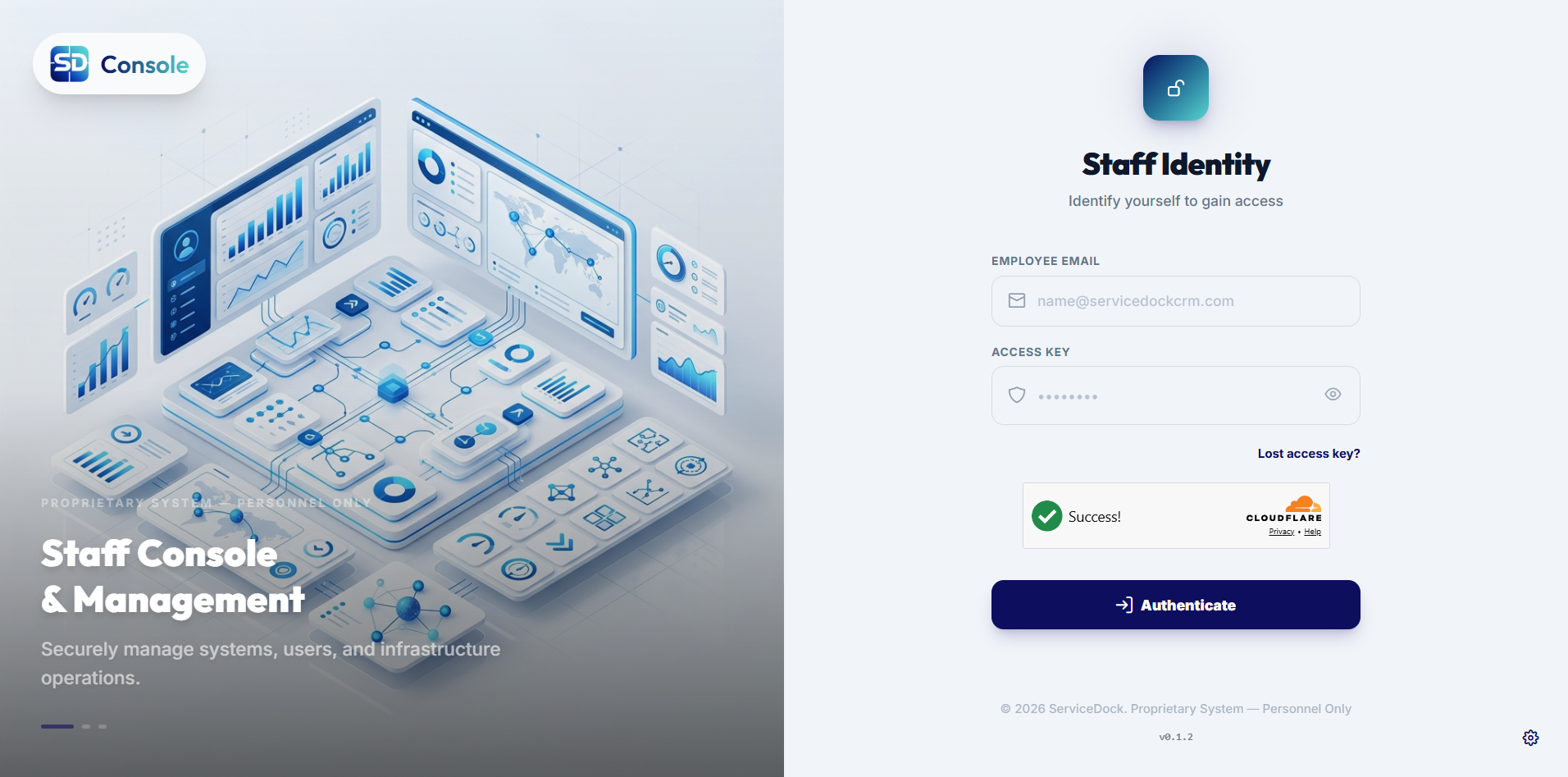
- Enter your employee email.
- Enter your access key (password).
- Complete the human-verification checkbox.
- Click Authenticate.
If your credentials are correct, you’ll land on the Admin Portal dashboard — unless your account requires a password change first (see below).
Password Update Required
Section titled “Password Update Required”This step is mandatory, not optional. Any account that was just created, or whose password an administrator reset, is required to set its own new password before it can do anything else in the Portal. This happens automatically right after a successful login — you’ll see a toast (“Password Update Required — your access key was assigned or reset by an administrator”) and be redirected straight to the password-update screen. There’s no way to dismiss it and continue with the old password.
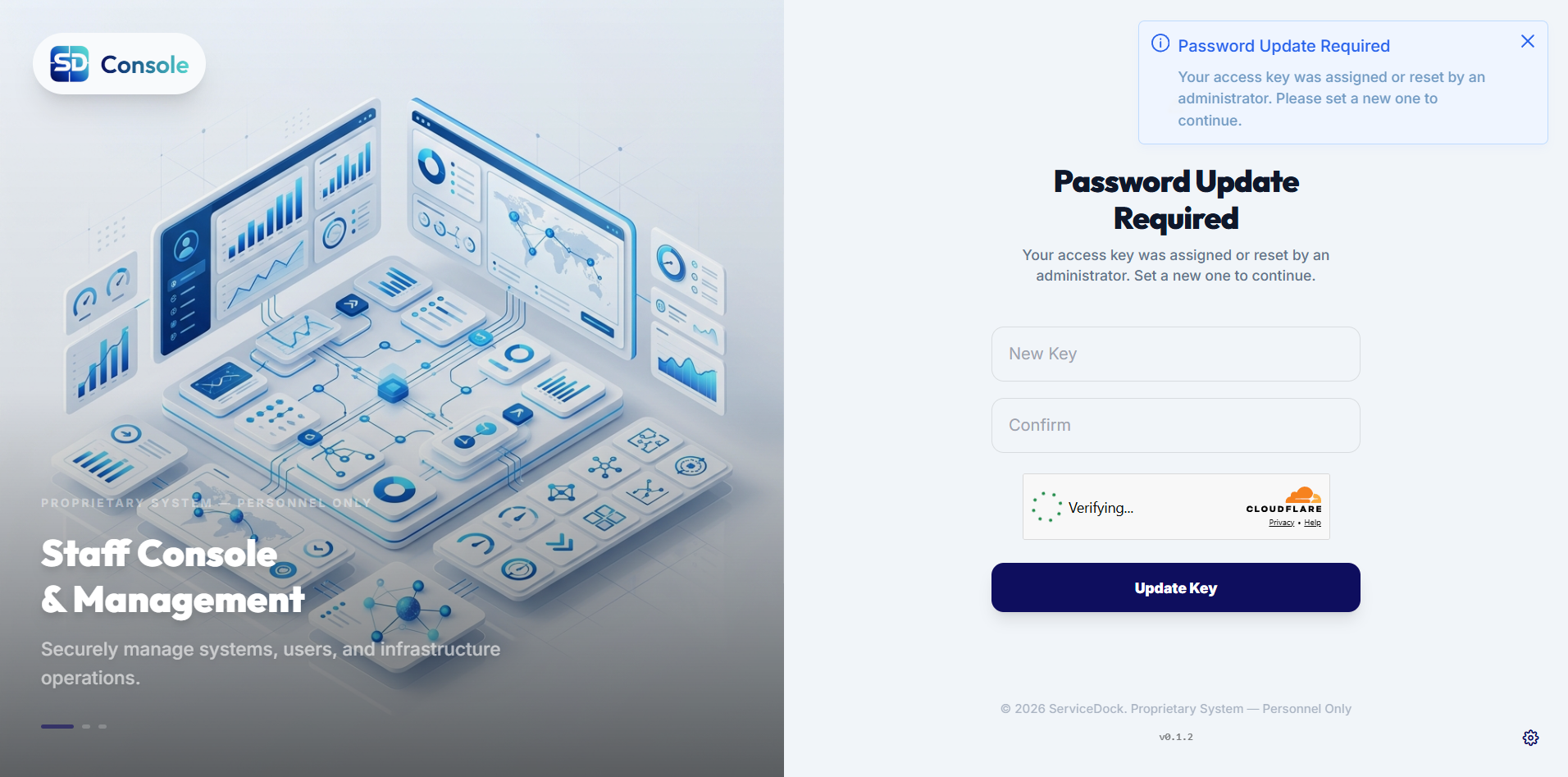
- Enter a New Key — this must be a genuinely different, strong password. Don’t reuse your old/temporary one.
- Re-enter the same password in Confirm.
- Complete the human-verification checkbox.
- Click Update Key.
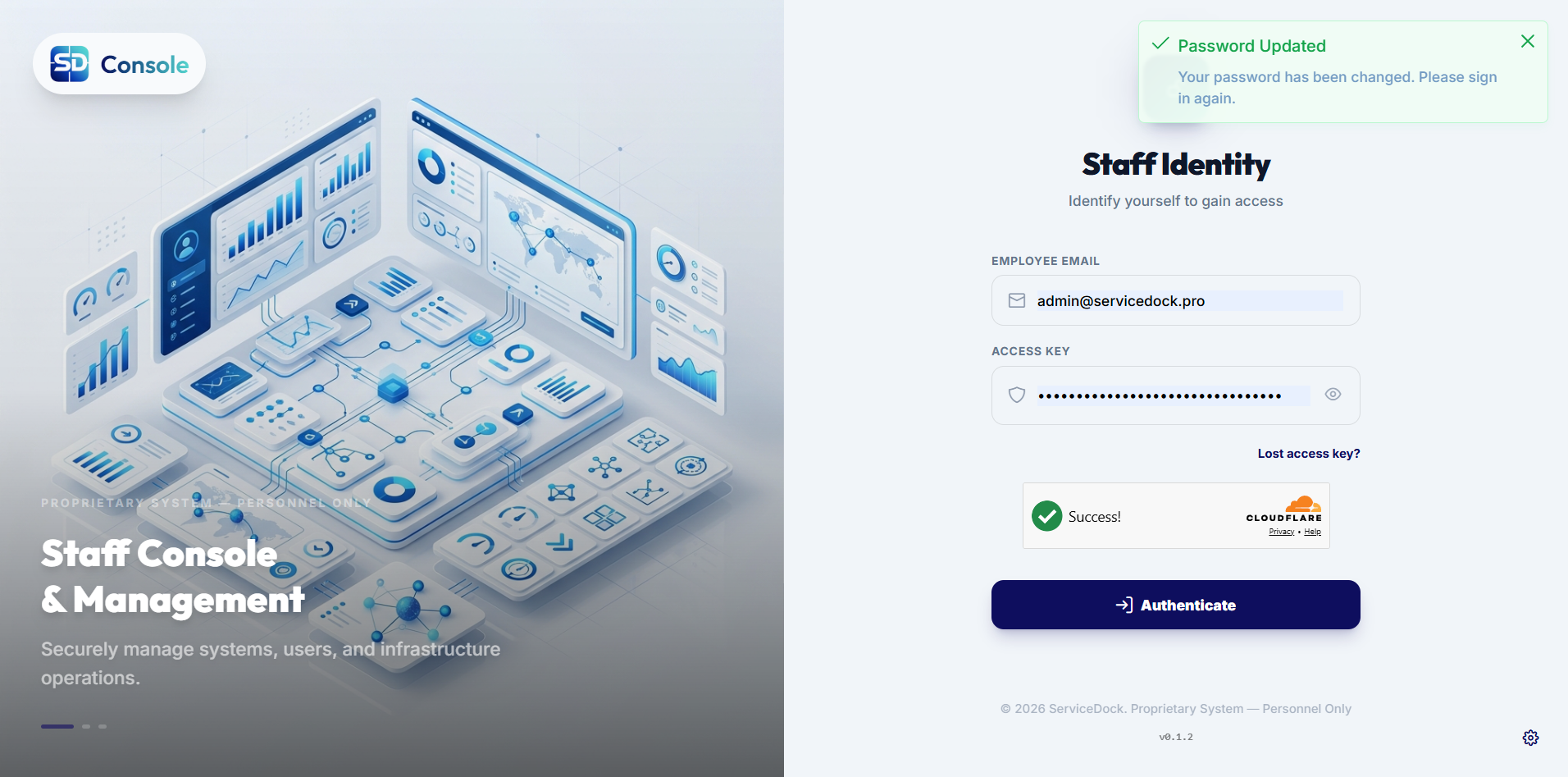
Once it succeeds, you’ll be signed out automatically and sent back to the login page — sign in again using your new password to continue into the Portal.
I forgot my access key — what do I do?
That’s a separate flow from the mandatory change described above — see Resetting Your Access Key for how to request a reset link when you don’t know your current password at all.
Do I have to change my password every time I log in?
No. It only happens once — the first time you log in after your account is created, or any time an administrator resets your access key for you. Once you’ve set your own new password, normal logins no longer show this screen.
I closed the tab partway through the forced password change — what happens now?
Nothing is lost. The requirement lives on your account, not in that browser tab — log in again and you’ll be sent straight back to the same password-update screen until you actually complete it.
The human-verification checkbox won't complete — what's wrong?
Try refreshing the page and attempting again. If it keeps failing, it may be a network/browser extension issue (ad blockers and some privacy extensions can interfere with Cloudflare Turnstile) — try a different browser or disabling extensions for this site.